
Cook with Risoni
Open Cook this recipe from a recipe, or Cook from a planned meal. Cooking shows one step at a time with ingredients and timers nearby.
Ingredients and servings
- Open Ingredients.
- Set the serving count if the recipe has a reviewed original count.
- Read the scaled amount beside the original ingredient wording, and check ingredients as you use them.
- Return to the step and use Next step or Previous.
Scaling changes ingredient guidance. It does not change cooking times, pan sizes or the original recipe. A written yield such as “14 to 16 pancakes” may need your review before it can be used as a serving count.
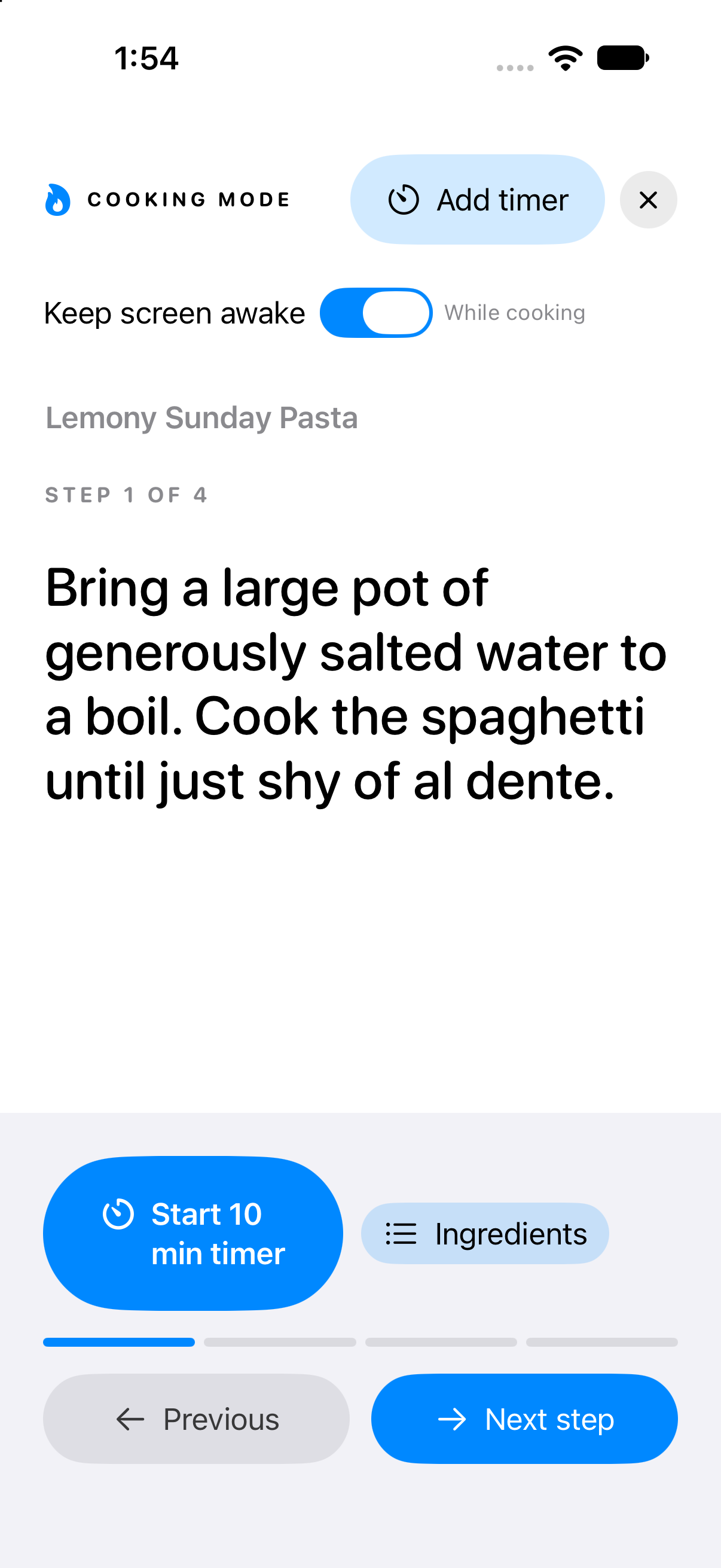
Read one step at a time. Open Ingredients to check what you need, use Next step to continue, and choose Add timer for a separate task.
Start a timer
For any step, choose Add timer, set a name and duration, then choose Start timer. Give different tasks distinct names.
When a step includes a recognized time, Timers from this step offers a suggestion. Tap it, inspect the duration and name, then choose Start timer. Merely viewing or cancelling the review starts nothing. For a range such as “5 to 7 min,” the suggestion uses the lower end so you can check before cooking longer. Use Add timer if you want a different duration.
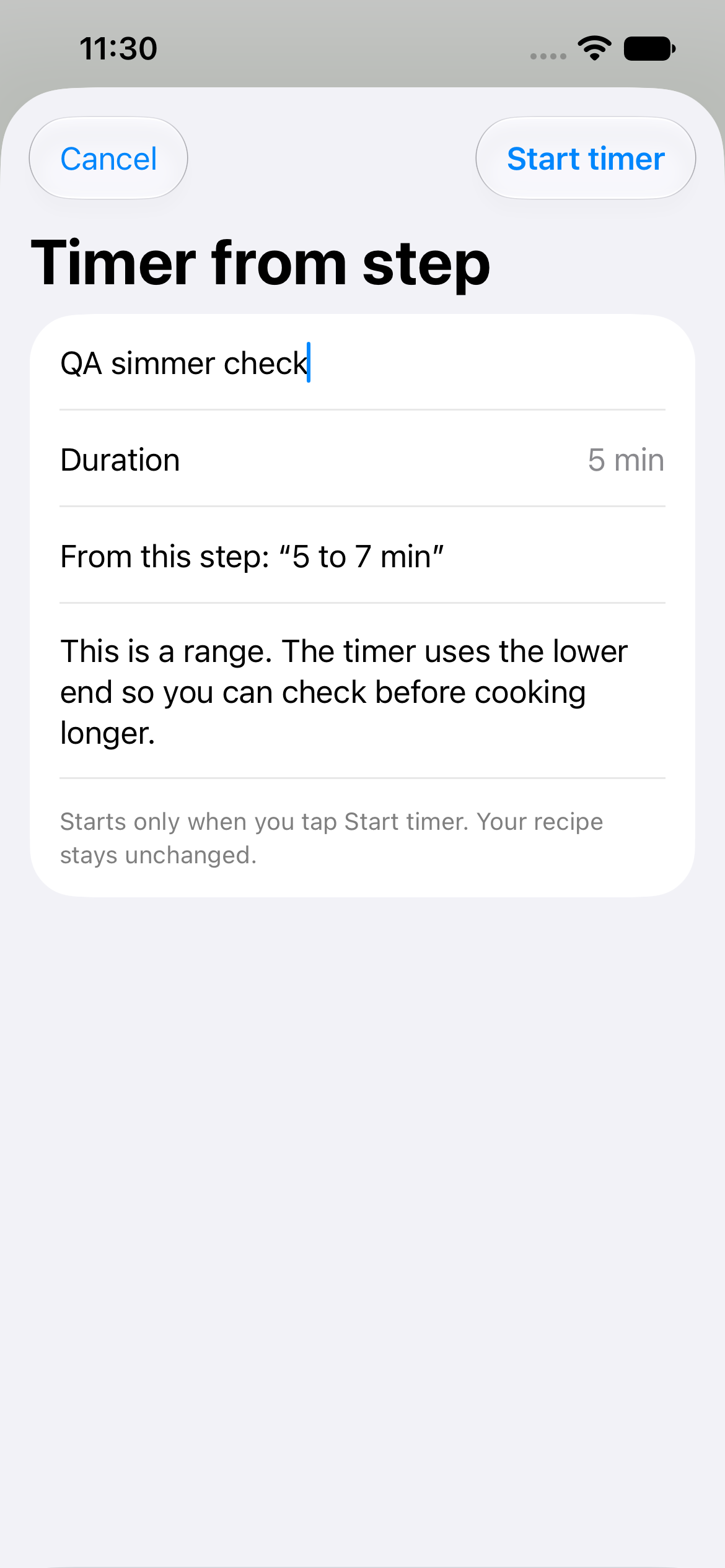
Review the timer name and duration before tapping Start timer. This five-to-seven-minute instruction suggests five minutes so you can check before cooking longer; Cancel starts nothing.
Keep your place
Timers remain visible while you change steps. In a compact layout, use the active-timer summary to see all timer names and deadlines. To stop one, choose its stop action and confirm.
Close cooking to leave temporarily. Reopen the same recipe or meal and choose to resume. The cooking session retains its recipe snapshot, servings, step, ingredient checks and timer deadlines. Finish cooking ends the session. If the recipe has changed, review the offered restart before switching to the latest wording.
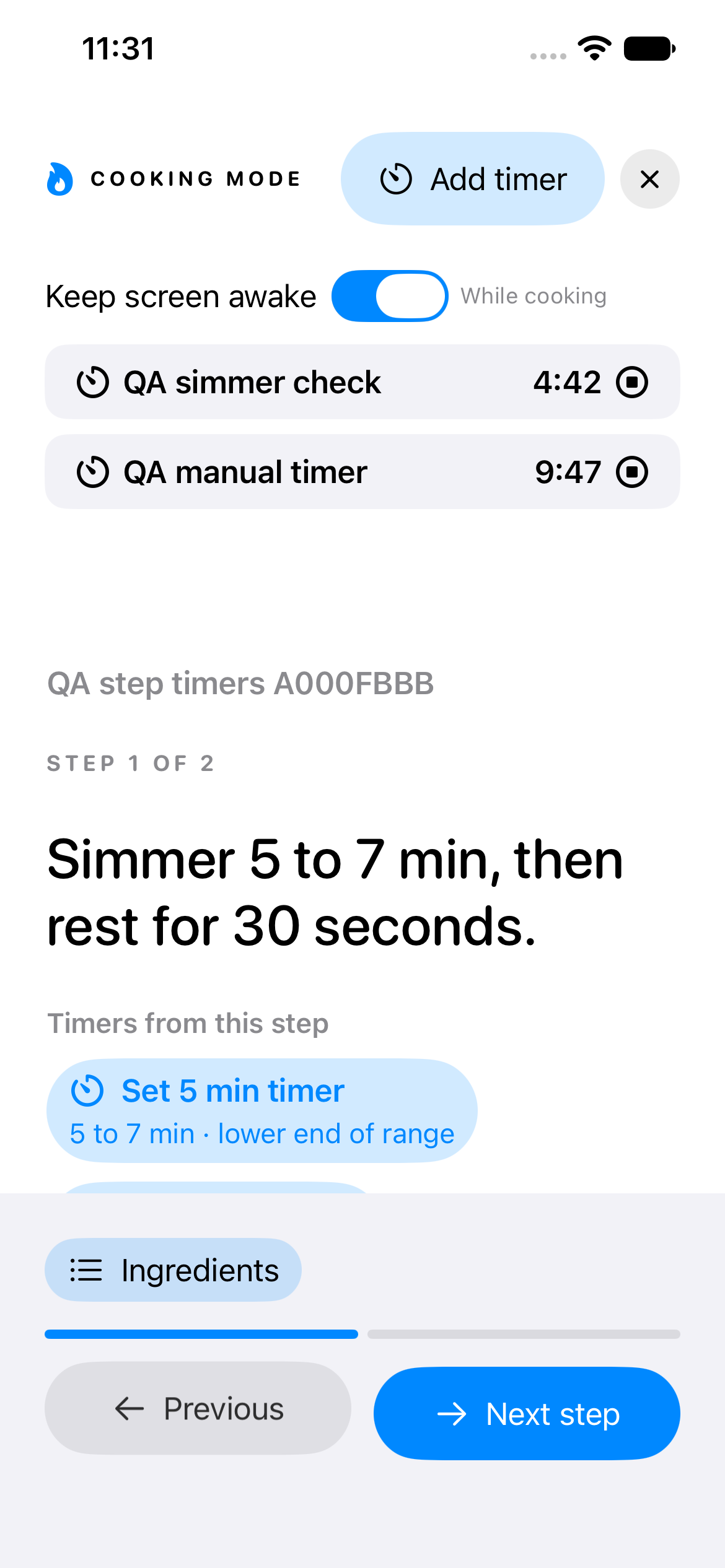
Two named timers appear above the current step. Use Ingredients to check what you need, Next step to continue, or Add timer for another task.
Keep the screen awake
Keep screen awake controls sleep while you are actively cooking. Turn it off when you want normal sleep behavior.
Timer safety
Timer deadlines can be restored when you reopen Risoni; a reliable audible alarm while the app is closed, locked or in the background has not been verified. Use a separate kitchen or system timer when you need that alert.
Cooking progress and timers belong to this device. Another person can cook a shared recipe independently without taking over your step or countdown.