
Shop for the week
Shopping combines ingredients from your planned meals. It keeps each recipe's original wording available so you can check a suggested amount.
Check the list
- Confirm the planning date range at the top of Shopping.
- Review any item marked with a warning. Unclear quantities and units may stay separate.
- Choose List or By aisle. Aisles are suggestions, not your store's exact layout.
- Type extra groceries in Add an item, like lemons, then choose Add.
Plan changes update the list. List options → Refresh from planned meals requests another refresh if you need it.
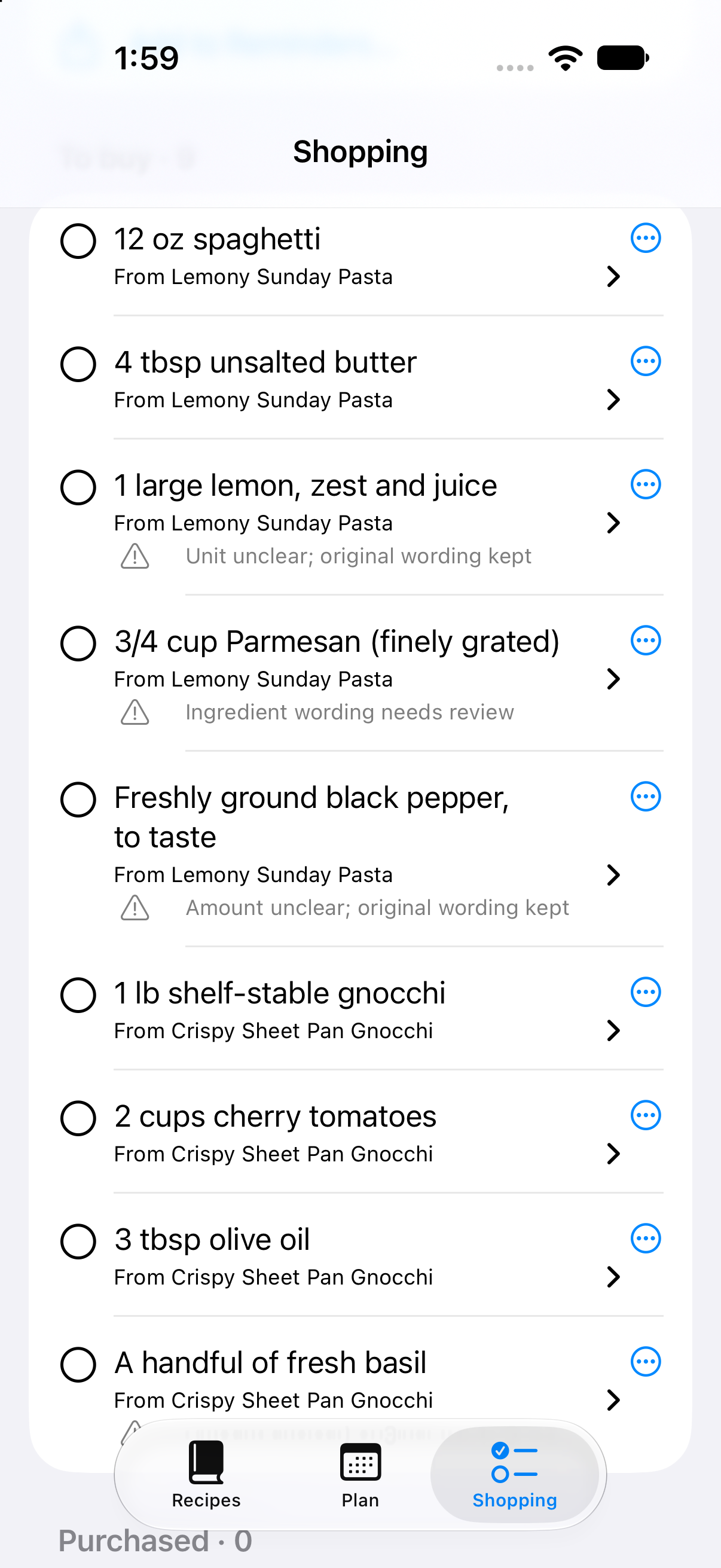
Check the recipe source and any warning beneath an ingredient. Open its three-dot menu for item options. This view is scrolled down into the list.
Correct, omit or purchase
- Open an item's Options menu, shown as three dots, and choose Edit item.
- Change Ingredient, Amount or Unit. Use Recipe sources to check the recipe, date and original line.
- Choose Save item. This corrects the shopping item without rewriting the recipe.
Choose Omit from list when you do not need a generated ingredient. It moves to Omitted; Restore to list brings it back. Choose Use generated suggestion to remove a correction and use the recipe-derived item again. A manual item can be removed.
Check a circle when you buy an item. It moves to Purchased. Uncheck it to return it to the list. Corrections, omissions and purchased checks are kept through refresh and reopening in the local workflow.
Add to Apple Reminders
This is one-way adding, not a synchronized grocery list. Verify the result in Reminders before relying on it.
- In Shopping, choose Add to Reminders….
- If you want to use it, allow the requested Reminders access. This optional route currently asks for full Reminders access to list destinations and check for existing items.
- Choose a writable list and select the unchecked, non-omitted items to add.
- Choose Add selected, then check the added/already-present result and open Reminders to verify it.
Existing reminders are not edited. Checking an item in Reminders does not check it off in Risoni, and later Risoni corrections do not update an exported reminder. Repeat adds try to skip the same item; if it already exists, review it in Reminders rather than expecting a new copy. Risoni does not control Apple's Grocery sections or aisle sorting.