
Add and import recipes
Open Recipes and choose an intake method. Check the title, ingredients, instructions, servings, destination kitchen and any warnings before saving.
1. Write or paste a recipe
Choose New recipe to enter one by hand. Use Paste text when the recipe is already in a note or a caption you can copy.
- Choose Paste text and enter the recipe text.
- Choose Review recipe.
- Edit the title, ingredient and method rows. Add missing rows or remove unrelated text.
- Choose Save recipe. A title, an ingredient and a method step are required.
Headings such as Title, Ingredients, Method and Notes help separate the text. Risoni does not fetch a social post, transcribe a video or invent missing instructions. Cancel leaves the library unchanged. Pasting the same original text again in the same kitchen offers the already saved recipe.
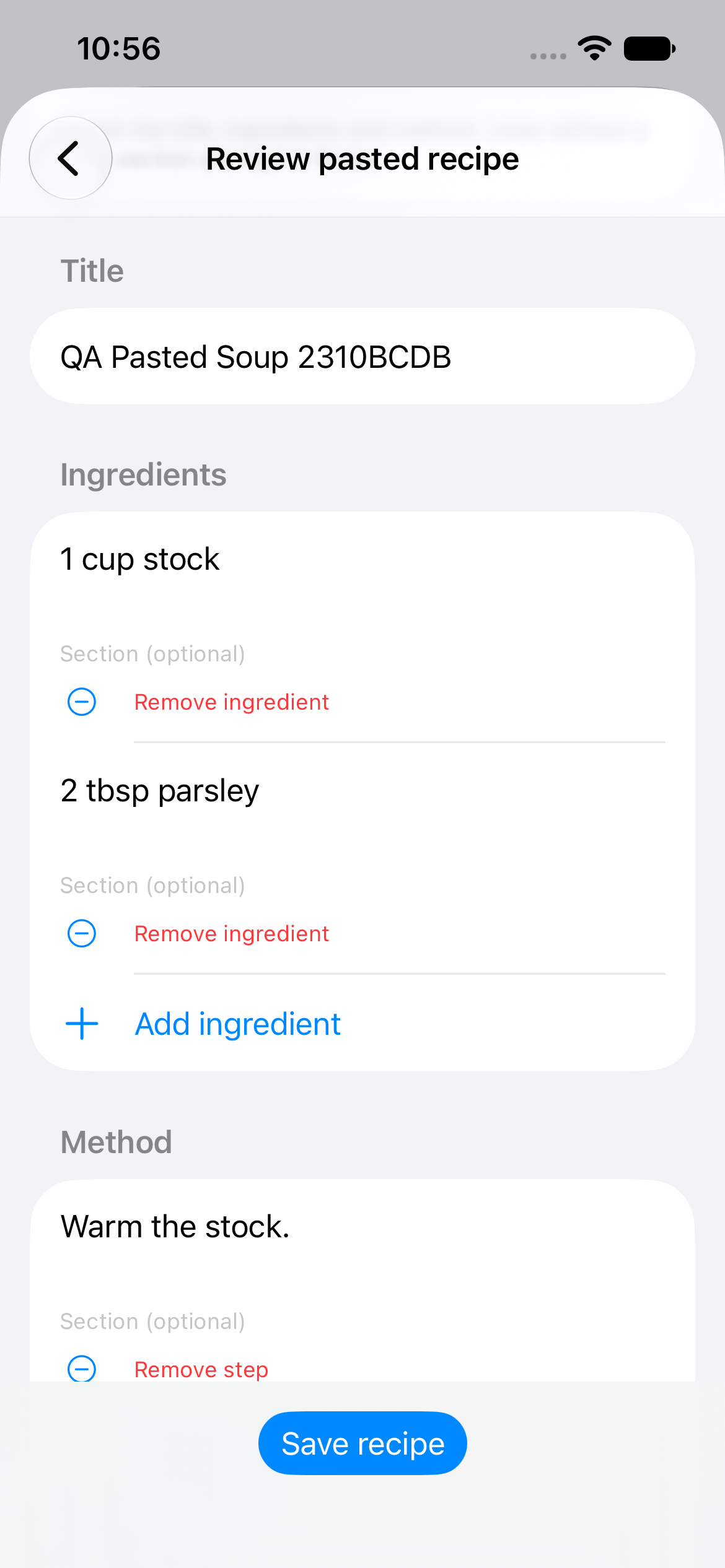
Check the title, edit ingredient and method rows, and use Add ingredient for anything missing. Tap Save recipe when the wording is ready.
2. Paste a website link
Paste link accepts public recipe pages from Allrecipes, BBC Good Food, Cookshack, Epicurious, Food Network, Serious Eats and Simply Recipes.
- Copy the recipe's HTTPS address.
- In Recipes, choose Paste link and enter it.
- Review the recipe that appears, including its source and yield, then save.
Some pages do not expose a complete recipe. Subscriber pages and other websites may need Safari Share instead. Open the page you can access in Safari and choose the Risoni share/capture action if it is available in your beta. Review the result against the visible page. This route does not promise access to a paid recipe.
3. Import a recipe file
Choose Import from Files, then select the file. Supported routes include Paprika recipe exports, CSV, local HTML and saved Safari web archives. Files are previewed before you save.
Moving from Paprika
- Keep an untouched copy of your original Paprika export.
- Select the
.paprikarecipesexport in Risoni. - Review the totals and warnings. Check a few recipes with photos, notes and sections.
- Save the reviewed recipe, or choose Save all new recipes for the new entries in a batch.
- If saving stops, review the selected entry and message before retrying. Already saved entries stay saved.
Compare your result with your export. Paprika 4 cookbook organization is not verified: a recognized cookbook name becomes a flat collection label, and missing membership cannot be reconstructed. Incomplete source recipes remain incomplete unless you edit them. Reimporting an unchanged source should not create another copy; changed sources need a review decision.
CSV and local HTML
For CSV, match the columns to fields such as Title, Ingredients and Directions. Title is required. Inspect the sample rows, continue to preview, then save. An edited CSV row can appear as a new source, so review duplicates before saving.
Local HTML must contain a supported recipe and be saved as UTF-8. If the file's text encoding is rejected, export or save a UTF-8 copy from its original app and retry. Changing the filename alone does not change its encoding.
4. Scan an image
- Choose Scan image, then Choose from Photos or Choose image file.
- Inspect the recognized lines beside the source image.
- Assign and correct the title, ingredients and method, then save.
Use a clear, readable image. OCR can misread fractions, columns and handwriting; compare each quantity with the original.
For an oversized-image error, make a smaller copy and choose that copy. Keep the original. Photos selection gives Risoni the chosen item; it does not need broad photo-library access for this flow.
5. Check the saved recipe
Open it from Recipes and confirm the ingredient wording, method, source and any photo. Use Edit to repair anything that needs attention. Original wording matters: scaling is guidance, and a missing serving count should be resolved from the recipe before scaling.
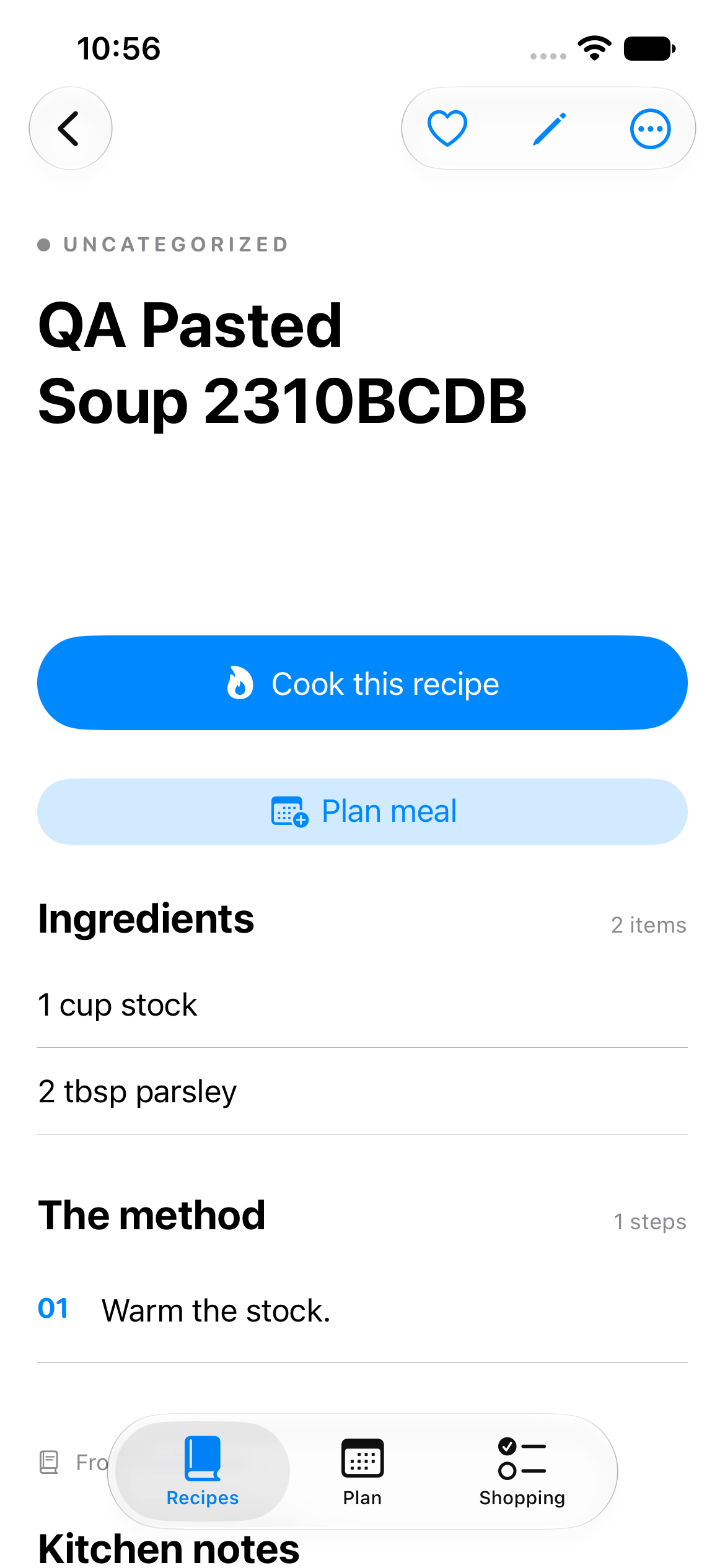
The saved recipe keeps its ingredients and method together. Tap Cook this recipe to begin, or Plan meal to choose when to make it.
Keep a backup
Kitchen backup → Export all recipes and import history includes recipes, embedded photos and their import records. Restore is for the same kitchen and reviews conflicts before saving; it is not a transfer into another shared kitchen. It excludes meal plans, shopping lists, cooking sessions and sharing access.
For one recipe, Export selected recipe with import history retains that history. Export readable text is a readable copy, without photos or raw import records. Keep your original exports as well; see beta limits before relying on a backup.