
Shop from your meal plan
Shopping combines ingredients from planned meals and keeps the original recipe wording available for checking amounts.
Review your list
- Check the planning date range at the top of Shopping.
- Review items marked with warnings. Unclear quantities and units may stay separate.
- Choose List or By aisle. Suggested aisles may differ from your store.
- Enter extra groceries in Add an item, like lemons, then choose Add.
Plan changes update Shopping. To request another refresh, choose List options → Refresh from planned meals.
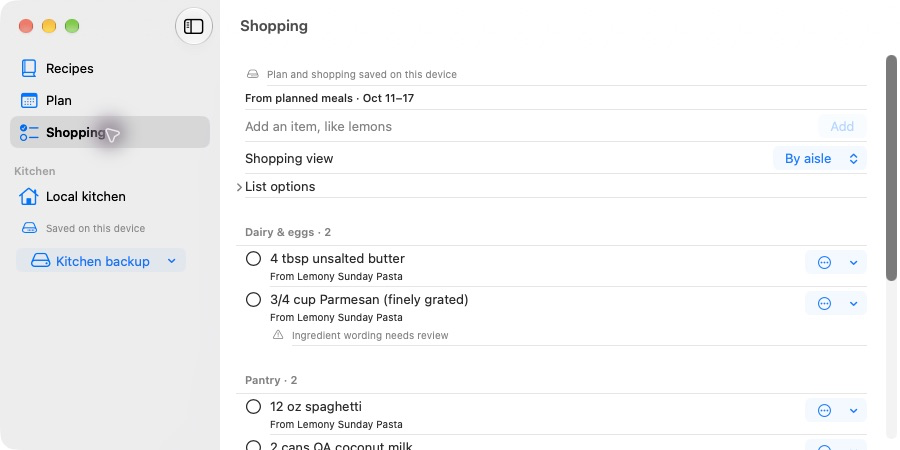
By aisle groups your groceries for a shopping trip. Check the date range and each item's recipe source before you shop.
Correct an amount
- Open the item's three-dot Options menu and choose Edit item.
- Change Ingredient, Amount or Unit. Check Recipe sources for the recipe, date and original ingredient line.
- Choose Save item.
The correction changes the shopping item without rewriting the recipe. Use generated suggestion removes a correction and restores the recipe-derived item.
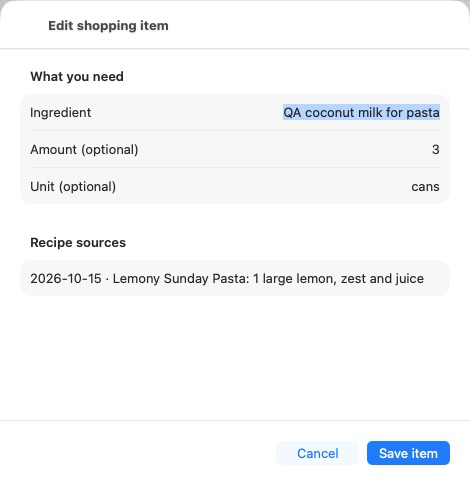
Check the original ingredient under Recipe sources, then adjust the shopping amount and choose Save item.
Omit or check off items
Choose Omit from list for a generated ingredient you do not need. It moves to Omitted; Restore to list brings it back. A manual item can be removed.
Check an item's circle when you buy it. It moves to Purchased. Uncheck it to put it back on the list. Corrections, omissions and purchased checks are retained through refreshing and reopening in the local shopping workflow.
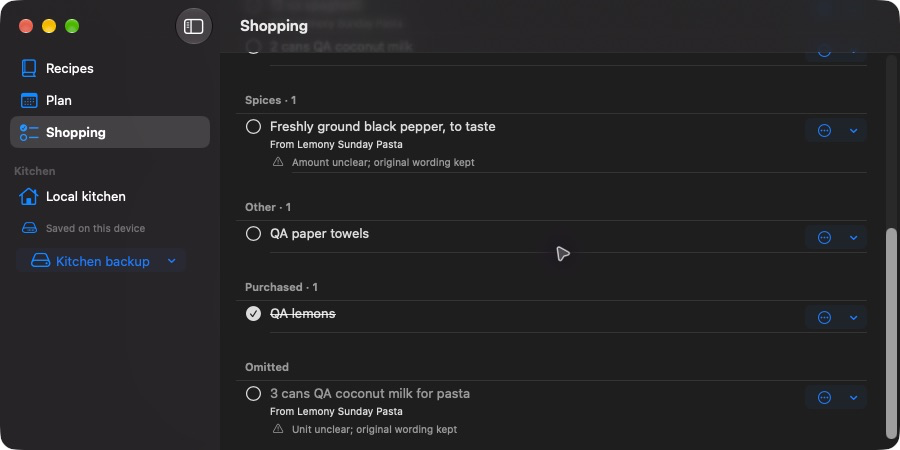
Purchased shows what you have bought. Omitted keeps ingredients you chose to leave off the shopping trip separate.
Apple Reminders
Export to Apple Reminders is not supported on Mac in the current beta. Use Risoni's Shopping list on your Mac.